Deploy HCP Vault Dedicated with Terraform
In the HCP Vault Dedicated quickstart series, you learned the basics of deploying, accessing, and managing a HCP Vault cluster. In this series of tutorials you will learn how to deploy, and manage HCP Vault in a production like setting.
The HashiCorp Cloud Platform (HCP) portal features a web user interface to deploy and manage resources, including HCP Vault deployments. The recommended approach is to automate deployments using infrastructure as code (IaC) with tools like Terraform, and storing the code in a version control system (VCS).
In this tutorial you will use Terraform and the Terraform provider for HCP to deploy a HCP Vault cluster.
The Terraform configuration for this tutorial deploys an AWS VPC, AWS subnet, HashiCorp Virtual Network (HVN) and peers the HVN and VPC.
Prerequisites
To complete the steps listed in this tutorial, you need:
- Terraform CLI installed
- An HCP account
- An AWS account
gitinstalled- AWS IAM credentials with permission to create a VPC, subnet, and accept a peering connection.
Set up the lab
Clone the learn-deploy-hcp-vault-terraform repository to get the necessary Terraform configuration for the tutorial.
Change into your preferred working directory and clone the repository.
$ git clone https://github.com/hashicorp-education/learn-deploy-hcp-vault-terraformChange into the directory containing the Terraform configuration for this tutorial.
$ cd learn-deploy-hcp-vault-terraformVerify that you are in the correct directory before proceeding.
$ ls -1
LICENSE
README.md
provider.tf
variables.tf
vault.tf
vpc-peering.tf
Run the commands for this tutorial from this directory.
Export your AWS access key ID and secret access key as environment variables.
Example:
$ export AWS_ACCESS_KEY_ID="<YOUR_AWS_ACCESS_KEY_ID>" AWS_SECRET_ACCESS_KEY="<YOUR_AWS_SECRET_ACCESS_KEY>"This tutorial uses AWS access and secret keys for simplicity. For production use cases, there are several supported AWS authentication options described in the Terraform provider for AWS documentation.
Create a service principal and key
When using Terraform, or other IaC tools, you should provision an account dedicated to the workflow with permissions following the principle of least privilege. In HCP, you will use a service principal.
You can create either an organization wide service principal, or a project scoped service principal. This tutorial uses a project scoped service principal, following the principle of least privilege. In this scenario, the service principal has access to a single HCP project.
Log in to the HCP portal.
From the navigation menu, select your organization and the project where you want to create the HCP Vault cluster.
Click Access control (IAM).
Click Service principals, and then click Create service principal.
Enter
learn-hcp-vaultin the Service principal name field.Click the Select service pulldown menu and select Project name-of-your-project.
Click the Select role pulldown menu and select Contributor.
Click Create service principal.
From the learn-hcp-vault page, click Keys.
Click Generate key.
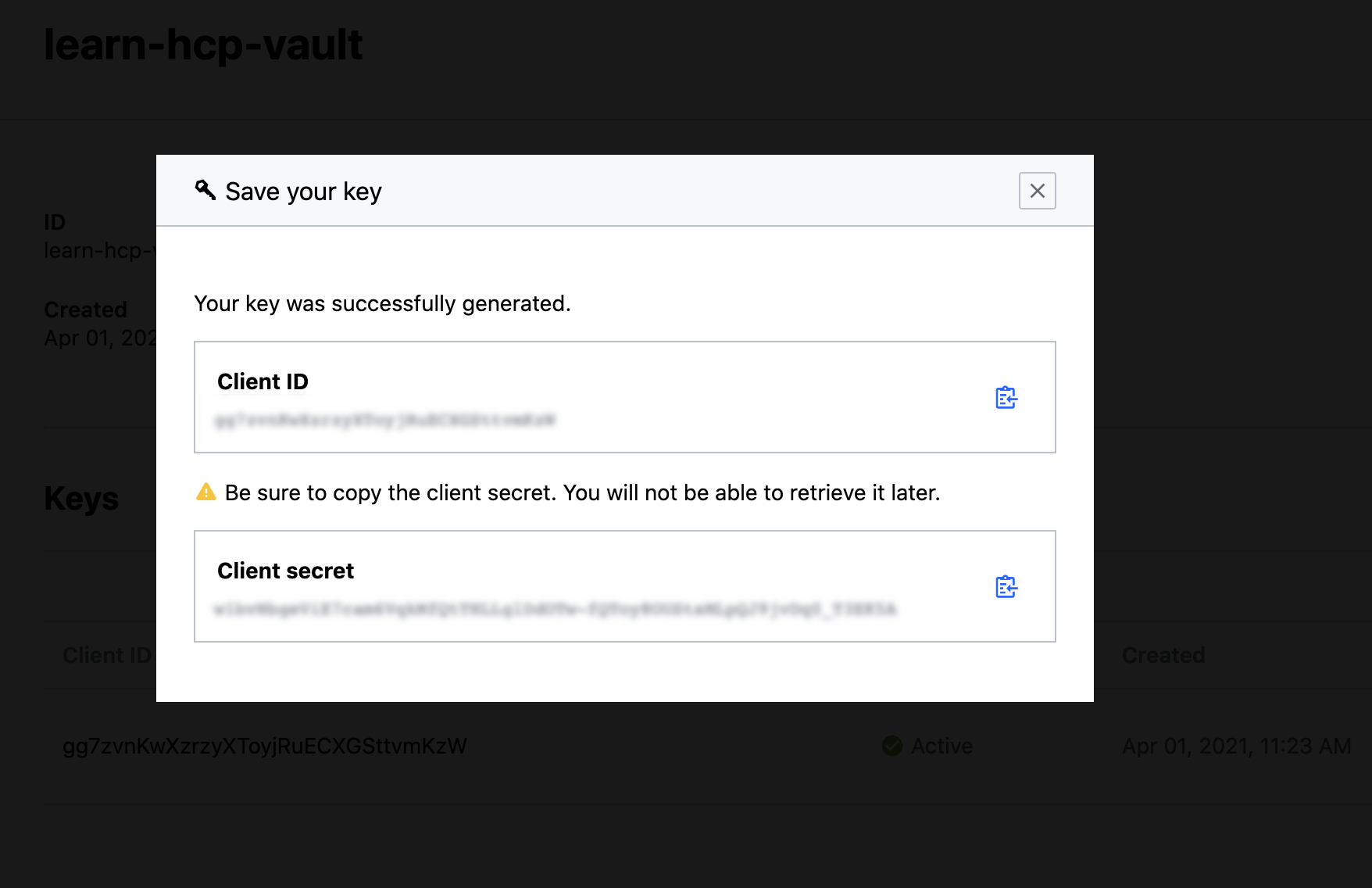
Copy the Client ID.
Return to the terminal where you set your AWS access and secret key environment variable.
Export an environment variable for the
HCP_CLIENT_ID.$ export HCP_CLIENT_ID=<client id value previously copied>Return to the HCP Portal and copy the Client secret.
Return to the terminal and export an environment variable for the
HCP_CLIENT_SECRET.$ export HCP_CLIENT_SECRET=<client secret value previously copied>Terraform authenticates with HCP using the client ID and secret.
In a production environment, you should store these secrets in a separate Vault cluster, accessible by your CI/CD pipeline. If you are using HCP Terraform, store them as a sensitive variable.
Review the Terraform configuration
The configuration in learn-deploy-hcp-vault-terraform is the minimum configuration necessary to
deploy HCP Vault using the Terraform provider for HCP with peered VPC.
Review variables
The variables.tf file defines all Terraform variables for the project,
expressed in the HashiCorp Configuration
Language (HCL). You can learn more
about the available options in the Terraform provider for HCP
documentation.
Examine the
variables.tffile. Note the description values to understand each variable.$ cat variables.tf variable "hvn_id" { description = "The ID of the HCP HVN." type = string default = "learn-hcp-vault-hvn" } variable "cluster_id" { description = "The ID of the Vault Dedicated cluster." type = string default = "learn-hcp-vault-cluster" } variable "peering_id" { description = "The ID of the HCP peering connection." type = string default = "learn-peering" } variable "route_id" { description = "The ID of the HCP HVN route." type = string default = "learn-hvn-route" } variable "region" { description = "The region of the HCP HVN and Vault cluster." type = string default = "us-west-2" } variable "cloud_provider" { description = "The cloud provider of the HCP HVN and Vault cluster." type = string default = "aws" } variable "tier" { description = "Tier of the Vault Dedicated cluster. Valid options for tiers." type = string default = "dev" }There are two important variables to note in this example configuration.
Lines 33 through 37 define the cloud provider where Terraform creates the HCP Vault cluster. HCP supports both AWS and Azure. The settings for your region will depend on which cloud provider you select.
Lines 39 through 43 define the HCP Vault cluster tier. The cluster tier is an optional parameter and the default value is
dev.A good practice, even if a parameter has a default value that works for your use case, is to define that parameter in your configuration. Defining all parameters helps when others on your team review the configuration, and helps prevent against unplanned changes due to module or provider changes.
You can override the default values in a Terraform configuration by creating a
terraform.tfvarsfile with the desired value(s).Example:
$ tee terraform.tfvars -<<EOF
tier = "standard_small"
EOF
Define the HashiCorp Virtual Network
Before you can deploy an HCP Vault cluster, you need to create a HashiCorp Virtual Network (HVN).
The HVN is a managed network environment in HCP that provides secure connectivity for your Vault cluster in your selected cloud provider. You can create multiple HVNs in your HCP account, across different regions to support disaster recovery and/or performance replication.
You define the HVN using the hcp_hvn resource.
Examine the
vault.tffile. Lines 3 through 7 define the HVN used in this tutorial.$ cat vault.tf resource "hcp_hvn" "learn_hcp_vault_hvn" { hvn_id = var.hvn_id cloud_provider = var.cloud_provider region = var.region } resource "hcp_vault_cluster" "learn_hcp_vault" { hvn_id = hcp_hvn.learn_hcp_vault_hvn.hvn_id cluster_id = var.cluster_id tier = var.tier #public_endpoint = true }The configuration defines an HVN resource named
learn_hcp_vault_hvnthat uses the variable values from thevariables.tfto declare the HVN ID, the cloud provider, and cloud provider region.
Define HCP Vault Dedicated cluster
In this tutorial you will deploy a single Vault cluster.
Examine the
vault.tffile. Lines 9 through 14 define the HCP Vault cluster.$ cat vault.tf resource "hcp_hvn" "learn_hcp_vault_hvn" { hvn_id = var.hvn_id cloud_provider = var.cloud_provider region = var.region } resource "hcp_vault_cluster" "learn_hcp_vault" { hvn_id = hcp_hvn.learn_hcp_vault_hvn.hvn_id cluster_id = var.cluster_id tier = var.tier #public_endpoint = true }The configuration defines an HCP Vault cluster resource named
learn_hcp_vaultthat uses the variable values fromvariables.tfto declare the HVN ID, and set the cluster ID tolearn-hcp-vault-cluster.The
public_endpointparameter, commented out at line 13, defines whether Terraform enables or disables the cluster's public endpoint. Refer to the Enable public cluster address section for more details about this optional parameter.
Enable performance replication (optional)
Configuring performance replication is beyond the scope of this tutorial, but provided as a reference.
You can enable performance replication for HCP Vault by adding an additional
hcp_hvn and hcp_vault_cluster block. With the second cluster block defined,
add the primary_link parameter to specify the primary cluster in the
replication topology.
For more information refer to the Configure Vault performance replication - Terraform provider for HCP guide.
Metric and audit log streaming (optional)
Configuring metric and audit log streaming is beyond the scope of this tutorial, but provided as a reference.
You can configure your HCP Vault cluster to stream audit logs and metrics to supported providers.
Use the metrics_config parameter for the hcp_vault_cluster resource to
define where the HCP Vault cluster will stream metrics.
Example:
resource "hcp_vault_cluster" "example" {
  cluster_id = "vault-cluster"
  hvn_id     = hcp_hvn.example.hvn_id
  tier       = "standard_large"
  metrics_config {
    datadog_api_key = "test_datadog"
    datadog_region  = "us1"
  }
}
Use the audit_log_config parameter for the hcp_vault_cluster resource to
define where the HCP Vault cluster will stream audit logs.
Example:
resource "hcp_vault_cluster" "example" {
  cluster_id = "vault-cluster"
  hvn_id     = hcp_hvn.example.hvn_id
  tier       = "standard_large"
  audit_log_config {
    datadog_api_key = "test_datadog"
    datadog_region  = "us1"
  }
}
Refer to the
hcp_vault_cluster
documentation in the Terraform Registry for more information.
Define VPC peering
Peering your HVN with your VPC creates a secure connection between the resources running in your cloud provider and the private endpoint of your HCP Vault cluster. This allows your applications to communicate with HCP Vault over a private network connection without exposing Vault to the public internet.
Examine the
vpc-peering.tffile.$ cat vpc-peering.tf provider "aws" { region = var.region } resource "aws_vpc" "peer" { cidr_block = "172.31.0.0/16" } data "aws_arn" "peer" { arn = aws_vpc.peer.arn } resource "hcp_aws_network_peering" "peer" { hvn_id = hcp_hvn.learn_hcp_vault_hvn.hvn_id peering_id = var.peering_id peer_vpc_id = aws_vpc.peer.id peer_account_id = aws_vpc.peer.owner_id peer_vpc_region = data.aws_arn.peer.region } resource "hcp_hvn_route" "peer_route" { hvn_link = hcp_hvn.learn_hcp_vault_hvn.self_link hvn_route_id = var.route_id destination_cidr = aws_vpc.peer.cidr_block target_link = hcp_aws_network_peering.peer.self_link } resource "aws_vpc_peering_connection_accepter" "peer" { vpc_peering_connection_id = hcp_aws_network_peering.peer.provider_peering_id auto_accept = true }The
vpc-peering.tfconfiguration connects your HVN to your AWS VPC. There are multiple connectivity options for your HCP Vault cluster. You can peer or use a transit gateway attachment for AWS.For Azure, you can use peering or connect in a hub and spoke model.
For other cloud providers, you can use an AWS or Azure account as a transit network and route traffic through the cloud provider. For example, you can connect your GCP account using a VPN and route traffic through a transit AWS account.
Deploy infrastructure
Now that you understand the example Terraform configuration, you can deploy your HCP and AWS resources.
Initialize Terraform, this downloads the necessary providers and initializes the backend.
$ terraform init

Initializing the backend...

Initializing provider plugins...
...snip...

Terraform has been successfully initialized!
Verify the resources that Terraform will create using
terraform plan.$ terraform plan An execution plan has been generated and is shown below. Resource actions are indicated with the following symbols: ...snip... Plan: 6 to add, 0 to change, 0 to destroy.You should note resources listed in the output, and at the end a summary that lists 6 resources to add.
Deploy the resources using the
terraform applycommand.$ terraform apply -auto-approve Terraform used the selected providers to generate the following execution plan. Resource actions are indicated with the following symbols: + create <= read (data resources) Terraform will perform the following actions: # data.aws_arn.peer will be read during apply ...snip... hcp_vault_cluster.learn_hcp_vault: Still creating... [04m10s elapsed] hcp_vault_cluster.learn_hcp_vault: Still creating... [04m20s elapsed] hcp_vault_cluster.learn_hcp_vault: Still creating... [04m30s elapsed] ...snip... hcp_vault_cluster.learn_hcp_vault: Creation complete after 9m46s [id=/project/70d220a8-c83e-47bf-99a9-7a2ce0f98156/hashicorp.vault.cluster/learn-hcp-vault-cluster] Apply complete! Resources: 6 added, 0 changed, 0 destroyed.You have deployed HCP Vault with Terraform. The Terraform configuration created resources in your AWS account, and peered with HVN with the AWS VPC.
Run
terraform show.$ terraform showExample output:
# hcp_hvn.primary_cluster_hvn:
resource "hcp_hvn" "primary_cluster_hvn" {
    cidr_block          = "172.25.16.0/20"
    cloud_provider      = "aws"
    created_at          = "2022-06-03T17:10:25.000Z"
    hvn_id              = "hvn-aws-us-east-1"
    id                  = "/project/a2c4e6g-8920-4714-ba99-0242ac11000e/hashicorp.network.hvn/hvn-aws-us-east-1"
    organization_id     = "a2c4e6g-88d2-69fb-8cc1-0242ac110014"
    project_id          = "a2c4e6g-8920-4714-ba99-0242ac11000e"
    provider_account_id = "091862471264"
    region              = "us-east-1"
    self_link           = "/project/a2c4e6g-8920-4714-ba99-0242ac11000e/hashicorp.network.hvn/hvn-aws-us-east-1"
}

# hcp_vault_cluster.primary_cluster:
resource "hcp_vault_cluster" "primary_cluster" {
    cloud_provider             = "aws"
    cluster_id                 = "vault-cluster-primary"
    created_at                 = "2022-06-03T17:11:06.097Z"
    hvn_id                     = "hvn-aws-us-east-1"
    id                         = "/project/a2c4e6g-8920-4714-ba99-0242ac11000e/hashicorp.vault.cluster/vault-cluster-primary"
    namespace                  = "admin"
    organization_id            = "a2c4e6g-88d2-69fb-8cc1-0242ac110014"
    project_id                 = "a2c4e6g-8920-4714-ba99-0242ac11000e"
    public_endpoint            = true
    region                     = "us-east-1"
    self_link                  = "/project/a2c4e6g-8920-4714-ba99-0242ac11000e/hashicorp.vault.cluster/vault-cluster-primary"
    tier                       = "DEV"
    vault_private_endpoint_url = "https://vault-cluster-primary-private-vault-ec951ba3.98ebdb39.z1.hashicorp.cloud:8200"
    vault_public_endpoint_url  = "https://vault-cluster-primary-public-vault-ec951ba3.98ebdb39.z1.hashicorp.cloud:8200"
    vault_version              = "v1.10.3"
}

# hcp_vault_cluster_admin_token.primary_cluster_token:
resource "hcp_vault_cluster_admin_token" "primary_cluster_token" {
    cluster_id = "vault-cluster-primary"
    created_at = "2022-06-03T13:17:54-04:00"
    id         = "/project/a2c4e6g-8920-4714-ba99-0242ac11000e/hashicorp.vault.cluster/vault-cluster-primary/token"
    token      = (sensitive value)
}

# time_sleep.wait_30_seconds:
resource "time_sleep" "wait_30_seconds" {
    create_duration = "30s"
    id              = "2022-06-03T17:17:52Z"
}

Outputs:

namespace = "admin"
token = (sensitive value)
vault_public_endpoint_url = "https://vault-cluster-primary-public-vault-ec951ba3.98ebdb39.z1.hashicorp.cloud:8200"
Because you deployed your HCP Vault cluster using Terraform, you can review details about the deployment with the
terraform showcommand.
Access Vault
Return to the HCP portal to inspect the newly created HCP Vault cluster.
From the navigation menu, click Vault Dedicated.
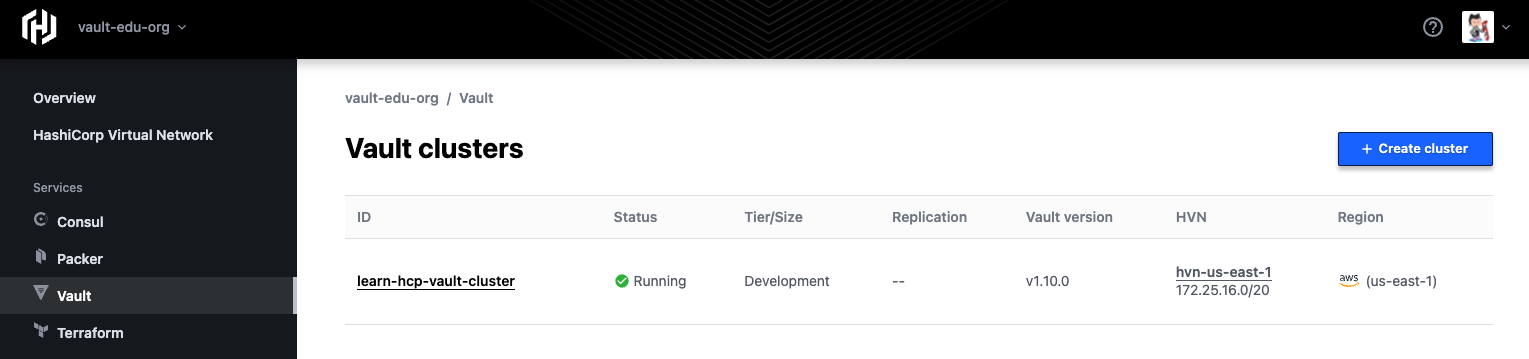
Click learn-hcp-vault-cluster to access cluster details.

The Vault Dedicated cluster overview shows details about the cluster such as the Status and Cluster Tier.
Click Back to Vault Dedicated and then click Back to Dashboard.
Click HashiCorp Virtual Networks.
Click learn-hcp-vault-hvn to access the HVN details.
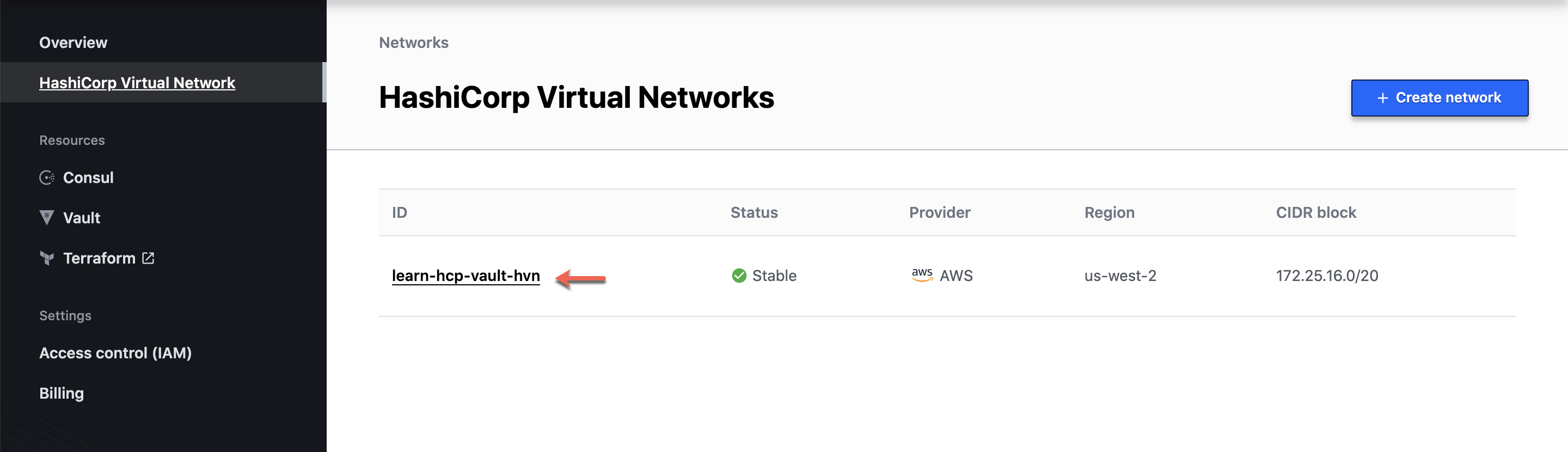
Under Network connections, click learn-peering.

You can view details for the VPC peering connection you created.
The HCP Portal allows you to make changes to your HVN, peering connection, or HCP Vault cluster. However, if you are using IaC tools like Terraform to automate and manage your deployments, its important to make any changes using those tools to avoid state drift.
Additional discussion
Updating AWS security groups
Configuring, managing, and securing access for your AWS workloads is a critical component of the shared responsibility model.
Terraform changes the default AWS behavior when creating security groups. Refer to the AWS Terraform provider documentation for a full list of available resources for AWS.
Once you peer your AWS VPC with the HVN, you will need to consider how to manage access from your AWS subnets to connect to HCP Vault.
When creating a new security group through the AWS console or AWS CLI, the
default behavior is to create an egress or outbound rule that permits all
traffic, represented by the 0.0.0.0/0 CIDR notation.
However, if you manage your AWS security groups using Terraform, the default Terraform behavior is to remove the default egress rule. Without the default egress rule, you need to explicitly add a rule to permit traffic from your AWS subnets to your HCP Vault cluster.
How you utilize security groups in your organization will guide you on the best way to approach managing access to your HCP Vault cluster.
To access HCP Vault, add an egress rule that permits TCP traffic on port 8200
using the
aws_security_group_rule
resource to an existing security group.
resource "aws_security_group_rule" "example" {
  type              = "egress"
  from_port         = 8200
  to_port           = 8200
  protocol          = "tcp"
  cidr_blocks       = ["172.25.16.0/20"]
  security_group_id = "sg-123456"
}
- Line 2: The
typeparameter allows you to define whether the rule is foringress(inbound) oregress(outbound). - Line 3-4: The
from_portandto_portparameters allow you to define one or more port numbers. For Vault, clients will connect on port8200. - Line 5: The
protocolfield specifies the type of traffic allowed. - Line 6: The
cidr_blocksfield contains the IP address the rule will permit access to, or from and should match the CIDR of your HVN. - Line 7: The
security_group_idis the ID of the security group you want to update.
If you are not familiar with AWS security groups, refer to the AWS documentation on Control traffic to resources using security groups.
Enable public cluster address
If you want to enable the public cluster address, update the vault.tf file with
public_endpoint set to true for the hcp_vault_cluster resource.
vault.tf
resource "hcp_hvn" "learn_hcp_vault_hvn" {
  hvn_id         = var.hvn_id
  cloud_provider = var.cloud_provider
  region         = var.region
}

resource "hcp_vault_cluster" "learn_hcp_vault" {
  hvn_id     = hcp_hvn.learn_hcp_vault_hvn.hvn_id
  cluster_id = var.cluster_id
  tier       = var.tier
  public_endpoint = true
}
Re-run the terraform apply command after changing public_endpoint to true.
$ terraform apply -auto-approve
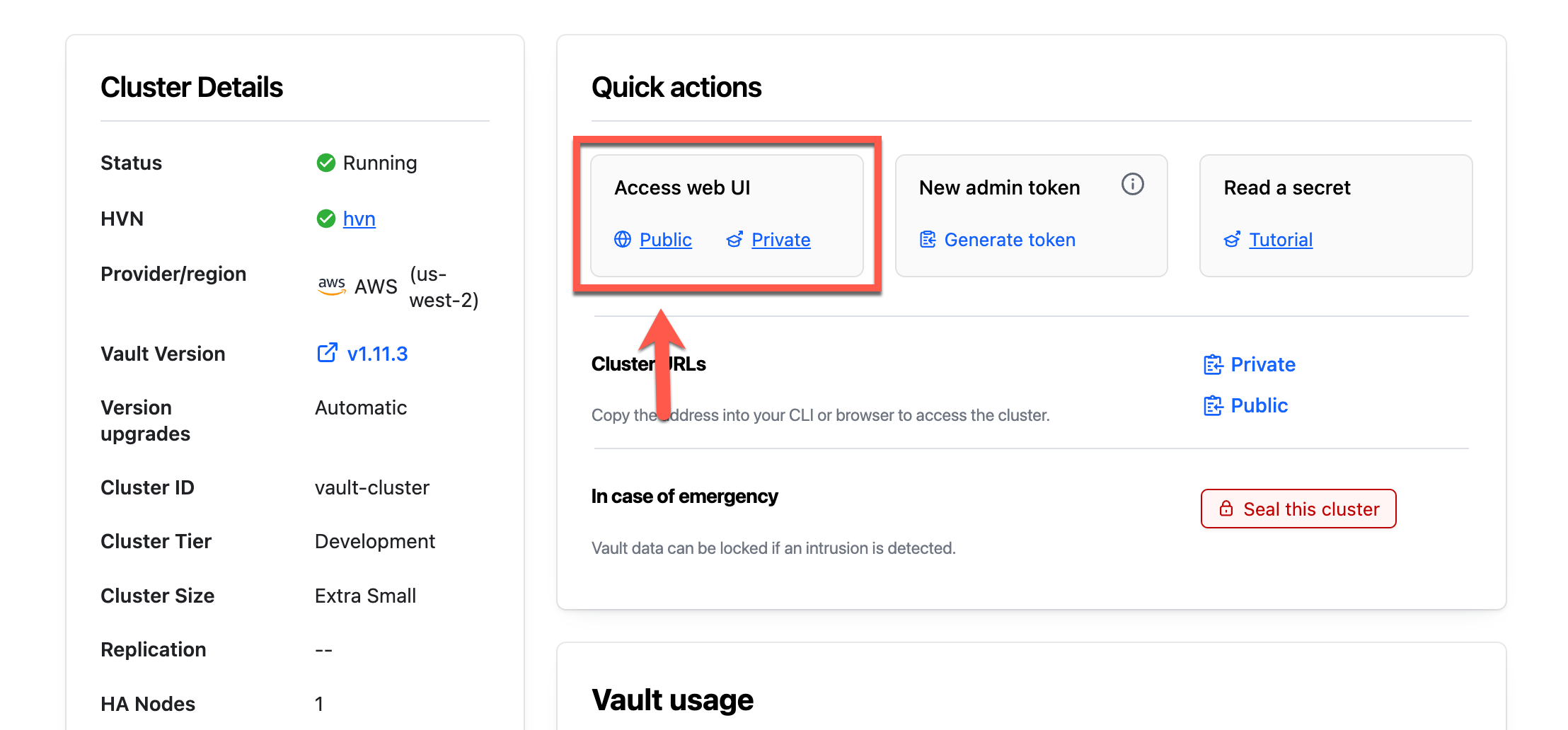
When it completes, you can access your HCP Vault cluster using its public address.
Clean up
- Run
terraform destroyto destroy the provisioned resources.
$ terraform destroy -auto-approve

...snip...
Destroy complete! Resources: 6 destroyed.
Summary
In this tutorial you learned how to automate the deployment of an HCP Vault cluster using the Terraform provider for HCP. You also learned about the resources available with the provider to configure your own environment.
With HCP Vault deployed in your HVN, and your HVN peered to an AWS VPC, you can deploy configure AWS resources to access HCP Vault using the Vault CLI, UI, or HTTP API.
You can find the full documentation for the Terraform provider for HCP in the Terraform registry documentation.
Next steps
In the next tutorial, you will learn how to configure your HCP Vault cluster using Terraform.