Create and store secrets in HCP Vault Dedicated
One of the core features of Vault is the ability to read and write arbitrary secrets securely. Vault encrypts secrets when written to the backend storage. Therefore, the backend storage mechanism never sees the unencrypted value and doesn't have the means necessary to decrypt it without Vault.
HashiCups wants to store application secrets such as API keys, passwords, and certificates in HCP Vault Dedicated. In this tutorial, Oliver from HashiCups learns how to create and store secrets using the Key/Value (K/V) secrets engine in HCP Vault Dedicated.
Prerequisites
- Completed the Create a Vault Cluster on HashiCorp Cloud Platform (HCP) tutorial.
- Completed the Access your HCP Vault Dedicated cluster tutorial.
Key/Value secrets engine
The Key/Value v2 secrets engine is a generic key-value store used to store arbitrary secrets within the configured physical storage for Vault.
The Key/Value secrets engine has version 1 and 2. The difference is that v2 provides versioning of secrets, while v1 does not.
Use the vault kv <subcommand> [options]
[args] command to interact with
the K/V secrets engine.
Available subcommands:
| Subcommand | kv v1 | kv v2 | Description |
|---|---|---|---|
| delete | x | x | Delete versions of secrets stored in K/V |
| destroy | x | Permanently remove one or more versions of secrets | |
| enable-versioning | x | Turns on versioning for an existing K/V v1 store | |
| get | x | x | Retrieve data |
| list | x | x | List data or secrets |
| metadata | x | Interact with Vault's Key-Value storage | |
| patch | x | Update secrets without overwriting existing secrets | |
| put | x | x | Sets or updates secrets (this replaces existing secrets) |
| rollback | x | Rolls back to a previous version of secrets | |
| undelete | x | Restore the deleted version of secrets |
Enable secrets engine
(Persona: operations)
Before teams at HashiCups can write secrets to HCP Vault, Oliver must enable the
key/value v2 secrets engine. You enable a
secrets engine in a specific namespace. The secrets you create in the admin
namespace are not accessible from other namespaces by default.
In the Vault UI, set the current namespace to
admin/.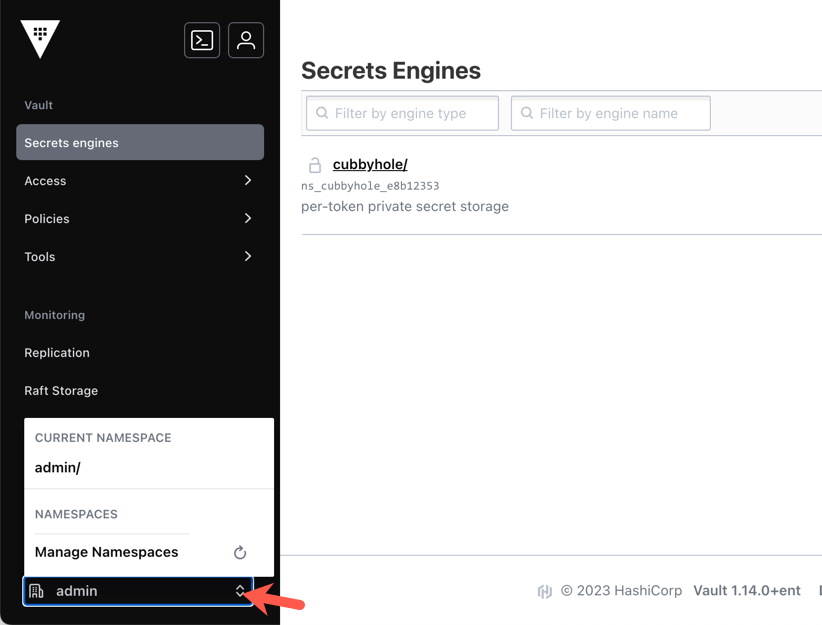
Click Secrets.
Click + Enable new engine.
Select KV from the list, you are routed to the next screen.
Enter
secretin the Path field.Click Enable Engine to complete.
Add secrets to Vault
(Persona: operations)
Now that you have enabled the KV secrets engine, you can write secrets to Vault. Vault allows you to create different paths. For example you can have one path for the ops team, with secrets they need access to, and another path for the development team with different secrets.
In the Vault UI, set the current namespace to
admin/.Click Secrets.
Click secret/. This is the secrets engine you enabled earlier in the tutorial.
Click + Create secret.
Enter
dev/databasein the Path for this secret textbox.Enter
usernamein the Secret data key field.Enter
database-userin the Secret data value textbox.
Knowledge checks
A quiz to test your knowledge.
What is the default namespace used when you first access your HCP Vault Dedicated cluster?
🔘
root/🔘
system/🔘
admin/🔘
default/❌
root/❌
system/✅
admin/❌
default/What is the difference between Key/Value v1 and Key/Value v2 secrets engines in Vault?
🔘 KV v2 provides versioning of secrets, while KV v1 does not.
🔘 KV v1 supports higher throughput than KV v2.
🔘 KV v2 encrypts secrets while KV v1 stores them in plain text.
🔘 KV v1 allows secret destruction, while KV v2 does not.
✅ KV v2 provides versioning of secrets, while KV v1 does not.
❌ KV v1 supports higher throughput than KV v2.
❌ KV v2 encrypts secrets while KV v1 stores them in plain text.
❌ KV v1 allows secret destruction, while KV v2 does not.
What command would you use in the Vault CLI to store a secret with key
db-passwordand values3cr3t!at the pathsecret/database?vault kv put secret/database db-password="s3cr3t!"
Summary
In this tutorial Oliver enabled one of Vault's secrets engines, giving you an introduction to the key/value v2 secrets engine. After Oliver enables the secrets engine, they write a secret for the development team to use. To learn more about the K/V secrets engine, follow the Versioned Key/Value secrets engine tutorial.
Next steps
Oliver enabled the key/value v2 secrets engine and created a secret in HCP Vault. To fully take advantage of HCP Vault, following security best practices, Oliver needs to learn how to author policies to manage access to Vault resources at different paths.