Manage private environments with HCP Terraform agents
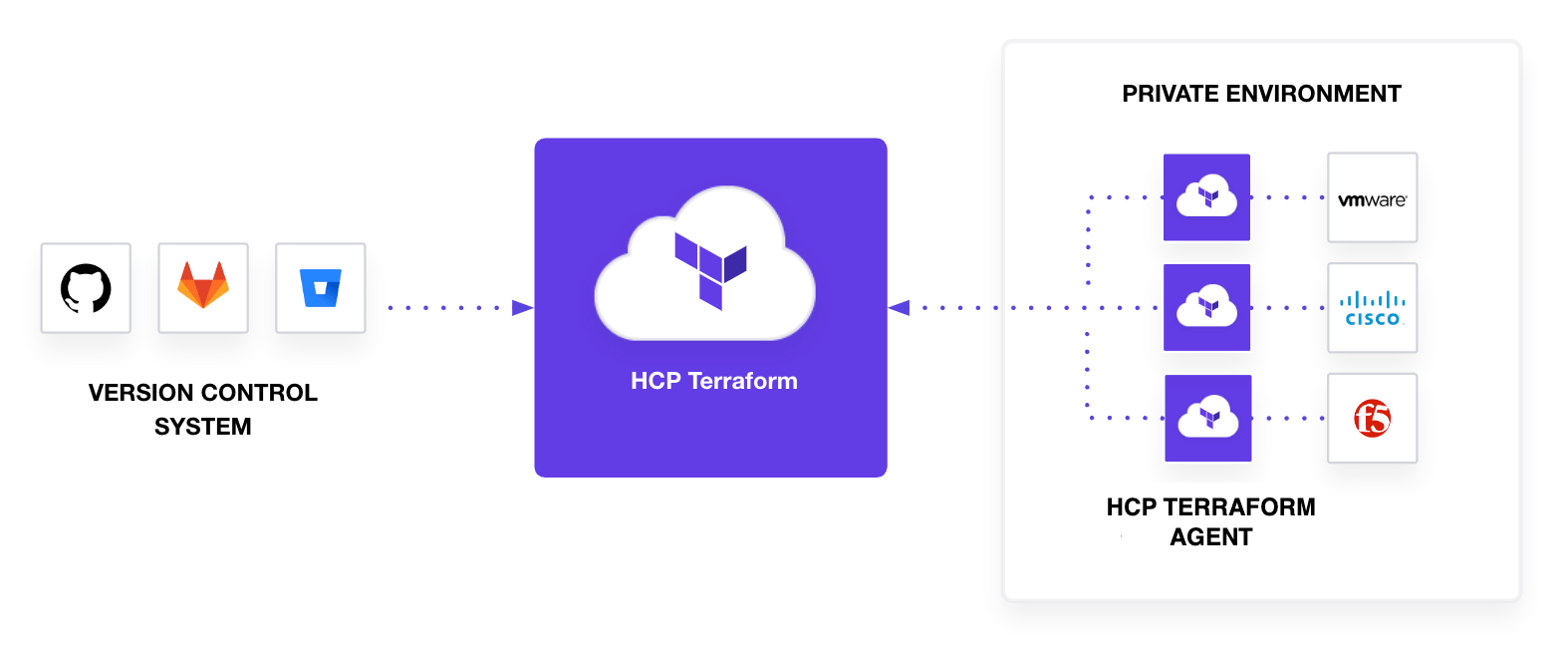
HCP Terraform manages isolated, private, or on-premises infrastructure using
self-hosted HCP Terraform agents. An HCP Terraform
agent (tfc-agent) polls HCP Terraform or
Terraform Enterprise for any changes to your configuration and executes the
changes locally, so you do not need to allow public ingress traffic to your
resources. Agents control infrastructure in private environments without
modifying your network perimeter.
In this tutorial, you learn how to perform the following tasks:
- Create an HCP Terraform agent pool.
- Configure an HCP Terraform workspace to use the agents to manage an nginx container on your machine.
- Launch local Dockerized agents on your machine.
- Add a second agent to the pool.
- Revoke a token.
By the end of the tutorial, you understand how to set up a similar configuration in your own environment.
Prerequisites
For this tutorial, you need the following:
- An HCP Terraform account
- A GitHub account and familiarity with forking a repository
- Docker installed on your local workstation
Log into your HCP Terraform account.
Create an agent pool
Agent pools are groups of agents that can share tokens. When you associate a workspace with an agent pool, any agent in the pool can execute a run in that workspace.
Follow these steps to create an agent pool:
Navigate to your HCP Terraform organization landing page.
Click Settings in the Manage section of the sidebar.
Click Agents in the Security section of the Settings sidebar.
Click Create agent pool.
On the Create an agent pool page, enter
educationin the Agent Pool name field.Click Continue.
HCP Terraform prompts you to generate a token for the agent pool. Enter
agent1in the Description.Click Create token.
HCP Terraform creates your token and displays the value in the Token created section. Copy the token value. HCP Terraform displays this token once, so you cannot review it again after you navigate away from the page.
Copy the environment variables in the Set up your agents section. You add these to an environment variable file in a later step.
The Set up your agents section suggests a command to run the Dockerized HCP Terraform agent that passes in environment variables with individual
-eflags. In this tutorial, you use thedocker runcommand's--env-fileparameter instead, which simplifies managing multiple variables within a single file. With this approach, you do not have to re-enter the environment variables each time you need to relaunch the container. Using an environment variable file also prevents credentials from appearing in your process tables, adding an extra layer of security.Click Finish.
You can configure multiple tokens per agent pool or have one shared token across all agents in the pool. By using unique tokens, you can revoke the token of one agent and stop its work without disrupting other agents in the pool, which you do later in this tutorial.
Configure a workspace to use agents
In this section, you create a version-control-driven workspace to use with your agent pool. For a detailed example of how to configure a VCS integration in HCP Terraform, revisit the Trigger HCP Terraform runs from VCS changes tutorial.
Fork the demo repository
The learn-terraform-cloud-agents demo
repository
contains sample configuration to launch an nginx Docker container. Create a fork
of the demo repository in your own GitHub account so that your workspace can use
this repository.
Create a workspace
Follow these steps to create a workspace associated with your
learn-terraform-cloud-agents repository:
Navigate to your HCP Terraform organization landing page.
Click Workspaces in the sidebar.
On the Workspaces page, click the New menu and select Workspace.
Select your project in the Create a new Workspace dialog.
Click Create.
In the Choose Type step of the Create a new Workspace wizard, click Version control workflow.
In the Connect to VCS step, click the GitHub menu and select GitHub.com. HCP Terraform may ask you to authenticate with GitHub.
In the Choose a repository step:
- Select your Organization. If you do not see your GitHub organization, select Add another organization.
- Select your
learn-terraform-cloud-agentsrepository.
In the Configure settings step, click Create.
Configure your workspace
Follow these steps to configure your workspace for the agent:
Navigate to your HCP Terraform organization landing page.
Click Workspaces in the sidebar.
Locate the
learn-terraform-cloud-agentsrow in the Workspaces table.In the Manage column, click the
...menu and select Settings.On the General settings page, set these configuration items:
- In the Execution Mode section, select Agent (custom).
- Select education in the Agent Pool list.
Click Save settings.
Run the HCP Terraform agent
Agents are available as Docker containers and as standalone binaries. This
tutorial uses the Docker image
tfc-agent. For guidance on
using the binaries, refer to Run an agent using the
binary.
Launch the agent
Follow these steps to run the HCP Terraform agent on your local machine:
Create a file named
agent1.listwith the token and agent name.TFC_AGENT_TOKEN=<YOUR_TOKEN> TFC_AGENT_NAME=agent1Replace
<YOUR_TOKEN>with the token value that you copied in the Create an agent pool step.The
TFC_AGENT_NAMEvalue appears in the Agents UI and on runs, letting you identify specific agents. If you plan on using unique tokens for each agent, we recommend that the token name and agent name be the same.Start the HCP Terraform agent (
tfc-agent) on your local machine.For this tutorial, mount the Docker socket with
-v
/var/run/docker.sock:/var/run/docker.sock
, which lets the agent use the Docker provider to manage other containers on your machine.$ docker run --name tfc_agent --env-file agent1.list -v /var/run/docker.sock:/var/run/docker.sock hashicorp/tfc-agent:latest [INFO] agent: Starting: name=agent1 version=1.32.0 os=linux arch=arm64 [INFO] core: Starting: version=1.32.0 [INFO] core: Agent registered successfully with HCP Terraform: id=agent-9F5TXbYJoA7s7c18 pool-id=apool-wqx8cnrSrFn2AUfi [INFO] agent: Core version is up to date: version=1.32.0 [INFO] core: Waiting for next jobKeep this terminal open.
Modify Docker socket permissions
Because this tutorial uses the Dockerized HCP Terraform agent to manage other
Docker containers, the HCP Terraform agent container needs to access the Docker
socket. The HCP Terraform Agent runs as the non-root tfc-agent user within the
container, so you need to explicitly modify the permissions for the Docker
socket.
Open a new terminal window.
Verify the group ID of the
dockergroup on your system. The group ID is the third field in the output, in this case281.$ grep docker /etc/group docker:x:281:rootExec into the agent container as the root user.
$ docker exec -it -u 0 tfc_agent /bin/bashCreate a
dockergroup within the container, replacing<GROUP_ID>with thedockergroup ID of your host.$ groupadd -g <GROUP_ID> dockerAdd the
tfc-agentuser, which owns the agent process, to thedockergroup.$ usermod -aG docker tfc-agentExit the container.
$ exit
Verify agent registration
Once the agent container launches, verify that it has registered with the pool on the HCP Terraform Agents page.
- Navigate to your HCP Terraform organization landing page.
- Click Settings in the Manage section of the sidebar.
- Click Agents in the Security section of the Settings sidebar.
- Verify that you can view your agent on the Agents page.
Create a local Nginx container
In this section, you use the HCP Terraform UI to execute a Terraform
configuration file against your local machine. The configuration file launches
an nginx Docker container. The HCP Terraform agent that you launched in the Run
the HCP Terraform agent section locally executes
the main.tf file in your remote learn-terraform-cloud-agents repository.
Trigger a plan and apply
Navigate to your HCP Terraform organization landing page.
Click Workspaces in the sidebar.
Locate the learn-terraform-cloud-agents row in the Workspaces table.
Click learn-terraform-cloud-agents in the Workspace name column.
Click Start new plan.
You can view run details and progress as HCP Terraform executes the plan.
In your terminal, the Docker agent logs display the agent's Terraform actions. Output is similar to the following:
[INFO]  core: Job received: job_type=plan job_id=run-BPFyb4rNjArniRJP
[INFO]  terraform: Handling run: run_id=run-BPFyb4rNjArniRJP
[INFO]  terraform: Extracting Terraform from release archive
[INFO]  terraform: Terraform CLI details: version=1.16.4
[INFO]  terraform: Downloading Terraform configuration
[INFO]  terraform: Running terraform init
[INFO]  terraform: Registry artifact usage control is not enabled for this run
[INFO]  terraform: Checking for eol module versions
[INFO]  terraform: Running terraform plan
[INFO]  terraform: Generating and uploading plan JSON
[INFO]  terraform: Generating and uploading provider schemas JSON
[INFO]  terraform: Generating and uploading redacted plan JSON
[INFO]  terraform: Persisting filesystem to remote storage
[INFO]  terraform: Finished handling run
[INFO]  core: Waiting for next job
Click Confirm & Apply, add a comment, and then click Confirm plan.
The agent executes the work. The agent is self-contained and does not launch additional containers for the Terraform execution itself. Rather, the agent downloads the Terraform version your configuration specifies and any providers necessary to complete the work.
In this tutorial, the agent launches an additional Docker container because that is the resource declared in the demo Terraform configuration.
Output is similar to the following:
[INFO]  terraform: Handling run: id=run-NpfMDfGTsnY9ai6A run_operation=apply
[INFO]  terraform: Extracting Terraform from release archive
[INFO]  terraform: Terraform CLI details: version=1.16.4
[INFO]  terraform: Restoring filesystem from remote storage
[INFO]  terraform: Running terraform init
[INFO]  terraform: Running terraform apply
[INFO]  terraform: Finished handling run
[INFO]  core: Waiting for next job
Verify Nginx container
Once the apply is complete, open a new terminal window and confirm that your
Nginx container is running by using docker ps or visiting
Verify nginx container
Once the apply is complete, open a new terminal window and confirm that your
nginx container is running by using docker ps or visiting
$ docker ps
CONTAINER ID   IMAGE                        COMMAND                  CREATED              STATUS              PORTS                  NAMES
c9469d90663e   f6d0b4767a6c                 "/docker-entrypoint.…"   About a minute ago   Up About a minute   0.0.0.0:8000->80/tcp   nginx
515ed219aa66   hashicorp/tfc-agent:latest   "/bin/tfc-agent"         28 minutes ago       Up 28 minutes                              admiring_swartz
Though this tutorial targets your local machine, you can use the same configuration on any instance of your infrastructure. While running, the agent polls HCP Terraform for any new workloads it needs to complete. Since this is a pull-based pattern, your agents need an outbound connection. This is a lightweight way to use HCP Terraform within your isolated network segments without needing to configure your own installation of Terraform Enterprise.
Add a second agent to the pool
Each agent is single-threaded and can only execute the work of one run at a time. For concurrent workloads, you must provision multiple agents. Agents within a pool can share tokens or use unique ones so you can easily revoke the token of one agent without disrupting others.
Create a new token
Create a new token to use with your second agent.
- Navigate to your HCP Terraform organization landing page.
- Click Settings in the Manage section of the sidebar.
- Click Agents in the Security section of the Settings sidebar.
- Click the education agent pool name.
- In the Token Management section, click + New token.
- Enter
agent2in the Description. - Click Create token.
- Copy the token value. HCP Terraform displays this token once.
Launch a second agent
On your machine, launch a second agent with a unique token.
Create a file named
agent2.listwith the token and agent name.TFC_AGENT_TOKEN=<YOUR_SECOND_TOKEN> TFC_AGENT_NAME=agent2Replace
<YOUR_SECOND_TOKEN>with the value from the Create a new token step.Start the HCP Terraform agent (
tfc-agent) on your local machine.$ docker run --name tfc_agent2 --env-file agent2.list -v /var/run/docker.sock:/var/run/docker.sock hashicorp/tfc-agent:latestYou do not need to repeat the Modify Docker socket permissions steps for the second agent. You only launch the second agent so you can review multiple agents in the UI.
The Agents page in HCP Terraform now displays two agents ready to retrieve and process workloads.
Any other agents that have exited also appear here, but do not count toward your allotted number of agents. Refer to the HCP Terraform Agent documentation for a detailed list of possible agent statuses and how they count toward your agent totals.
You can configure additional agent pools as well, letting you maintain agents in each of your data centers and network segments.
Revoke a token
- Navigate to your HCP Terraform organization landing page.
- Click Settings in the Manage section of the sidebar.
- Click Agents in the Security section of the Settings sidebar.
- Click the education agent pool name.
- Click Revoke Token for the
agent2token. - Click Yes, delete token to confirm.
Once you revoke the token, the agent2 container logs its graceful
shutdown and exits.
[ERROR] agent: Unrecoverable error, shutting down: error="GET https://app.terraform.io/api/agent/jobs: unexpected status code (401 Unauthorized): Agent token invalid"
[INFO]  agent: Shutting down
[INFO]  agent: Core plugin is shutting down
[ERROR] core: Failed updating status: error="PUT https://app.terraform.io/api/agent/status: unexpected status code (401 Unauthorized): Agent token invalid"
[INFO]  core: Shutdown complete
Graceful shutdown complete
The agent1 container continues running. This demonstrates the
advantage of using unique tokens for your agents: you can revoke a token without
disrupting any other agents. The state of agent2 changes in the Agents
dashboard in HCP Terraform.
The agent2 agent is now in the Exited state. Idle, Busy, and
Unknown agents count toward your agent capacity, and Errored and
Exited agents do not. You can deregister an exited agent on the Agents
page.
Destroy resources
Now that you have created and used HCP Terraform agents to create resources in an isolated environment, clean up all resources created in this tutorial.
Destroy the infrastructure
Prior to removing the agent pool, remove the resources created by queueing a destroy plan in your workspace. Follow the Destroy Infrastructure step of the clean up tutorial for step-by-step instructions if needed.
Your agent container logs the destruction plan as well.
[INFO]  core: Waiting for next job
[INFO]  core: Job received: type=apply id=run-dVh4azMHBwS49QR5
[INFO]  terraform: Handling run: id=run-dVh4azMHBwS49QR5 type=apply org=hashicorp-training workspace=learn-terraform-cloud-agents
[INFO]  terraform: Extracting Terraform from release archive
[INFO]  terraform: Terraform CLI details: version=1.16.4
[INFO]  terraform: Recovering filesystem from remote storage
[INFO]  terraform: Running terraform init
[INFO]  terraform: Running terraform apply
[INFO]  terraform: Finished handling run
[INFO]  core: Waiting for next job
Disassociate the agent pool
To delete an agent pool, you must first disassociate it from all workspaces.
- Navigate to the General settings page of your
learn-terraform-cloud-agentsworkspace. - In the Execution Mode section, select Remote (custom).
- Click Save settings.
Delete the agent pool
- Navigate to your HCP Terraform organization landing page.
- Click Settings in the Manage section of the sidebar.
- Click Agents in the Security section of the Settings sidebar.
- Click the education agent pool name.
- Click Delete agent pool.
- Click Yes, delete agent pool to confirm.
Next steps
HCP Terraform's self-hosted agents let you manage more of your resources using HCP Terraform or Terraform Enterprise without modifying your network perimeter. Since run execution modes are workspace-specific, you can continue using remote execution for any publicly accessible resources and use the self-hosted agent for resources that require extra security.
Learn how to run agents in single-execution mode.
Review the configuration details and differences for using HCP Terraform Agents with Terraform Enterprise.
Explore the HCP Terraform/Enterprise provider.